Flashcards
Review with active recall and keep your practice inside the same study workspace.
Settings
Keep a focus timer and site blocker in your Chrome toolbar.Add to Chrome, free
online timer
what is a 60 minute timer for?
This free 60 minute timer counts down one hour. Use it for a demanding chapter, a one-hour exam paper or a long writing task, and plan a real break of 10 to 15 minutes afterwards. Press Start once your materials are ready.
by Vusal Imranli updated 14 Nov 20264 min read
An hour is the natural unit for planning, so a 60-minute timer makes a schedule concrete: three hours of study is three timers. It is also the length of many exam papers, which makes it the right block for timed practice. The trade-off is fatigue. Concentration usually dips at some point in an hour, so decide in advance whether to push through a dip or take a one-minute pause.
Counting an hour as an hour of study when much of it went to messages. If you paused often, the real total is lower. Pause the timer for interruptions so the number stays honest, and log it in a study time tracker.
Take a 10 to 15 minute break and move around. After two or three hours like this, take a longer break with a meal.
Across 145 Stuon users (8 March to 12 October 2026), the median logged study session lasted 33.9 minutes. A 60-minute block is about 26 minutes longer than that. The median active week held 5.1 logged hours, which is about 5 sessions of 60 minutes.
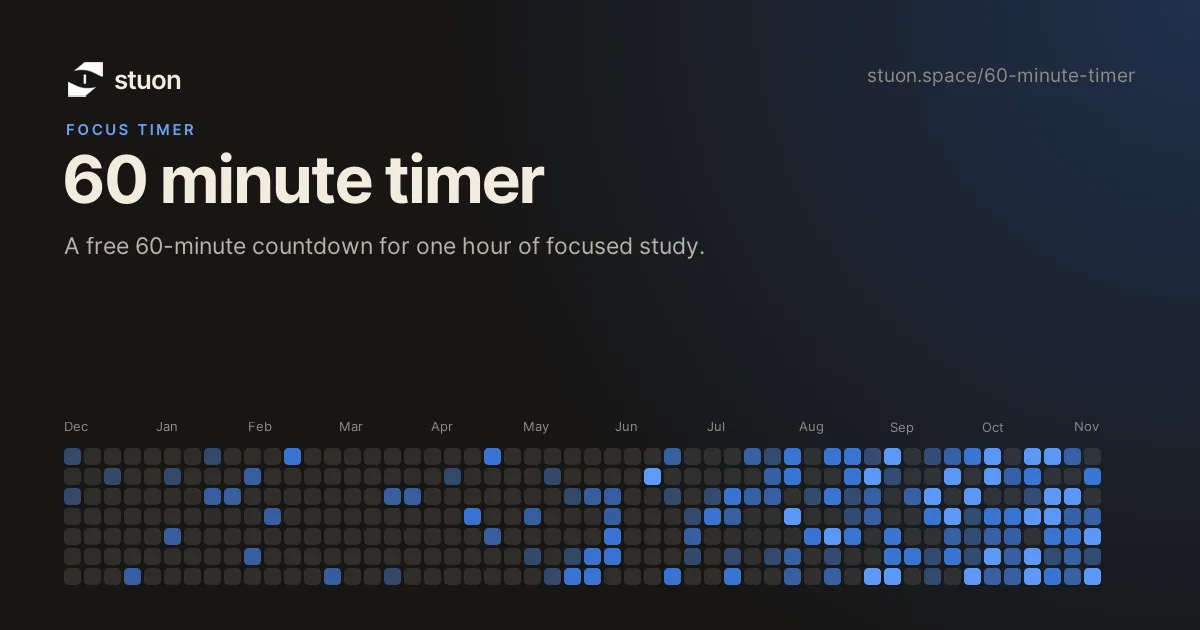
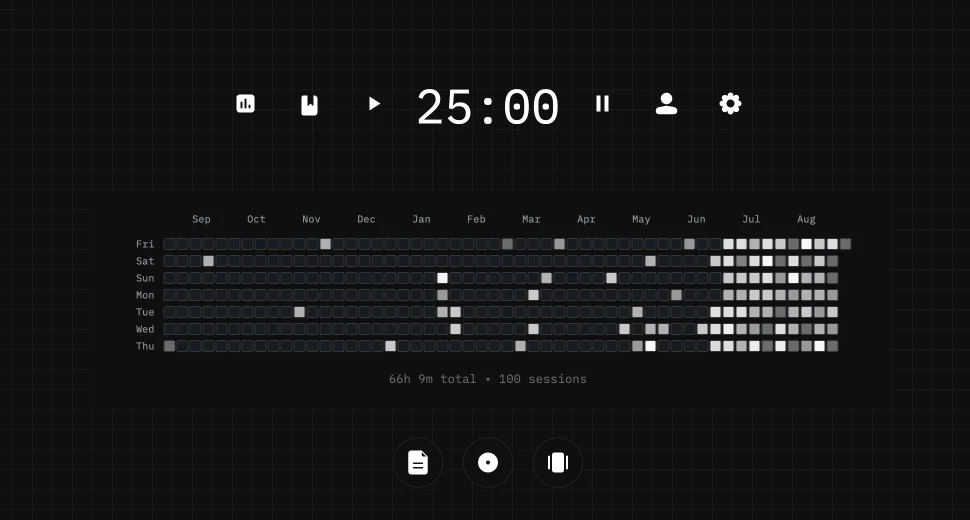
The countdown runs from your device clock, so it stays accurate in a background tab, but this page does not save finished sessions. In Stuon, each one goes into a study log and counts toward your streak and heatmap. See the study tracker and study heatmap.
Up to an hour on one task is sustainable for most students, followed by a 10 to 15 minute break. Longer sittings are possible but work better with planned pauses.
Yes. Start it with the paper, keep it in full screen, and work under real time pressure. The exam countdown timer adds exam-specific pacing advice.
Yes. It calculates the remaining time from your device clock, so the countdown is accurate when you return. Mobile browsers can pause background pages, so keep the page open when possible.
No. This page runs the countdown without an account and stores nothing. Use Stuon when you want sessions saved to a log, streak and heatmap.
This page does not store anything. In Stuon every session is logged and added to your streak and heatmap.
Save your study sessionsAdd to Chrome, freeor use the free version without an account
Stuon Pro
Finish the timer here, then bring the session into Stuon. Pro adds active study modes, cloud sync, analytics, goals, projects, and richer progress tracking.
Review with active recall and keep your practice inside the same study workspace.
Write everything you remember, expose the gaps, and review the topic again.
Sketch diagrams, maps, and visual explanations without leaving your focus session.
Stuon Pro · lifetime
Unlock Flashcards, Blurting, Drawing, analytics, cloud sync, goals, projects, and Pro focus modes.