guide
How to track study time in Chrome
how do you track study time in Chrome?
Use a timer extension that saves each session to an account. With the Stuon extension, you start a session from the toolbar, label what you are working on, and stop it when you finish. The session is saved to your Stuon heatmap, streak and analytics, even if you were offline.
by Vusal Imranli updated 14 Nov 20263 min read
Set it up once
- Install and connect. Add the Stuon extension and sign in with your Stuon account.
- Pin it. Pin the icon to the toolbar so the badge shows your session at a glance.
- Label each session. Type the subject or task in "What are you working on?". The label is saved with the session.
- Stop, do not abandon. Press stop at the end so the session is saved with its real length.
- Review weekly. Open Stuon and check the heatmap and Analytics once a week.
What gets recorded
| Criteria | Recorded |
|---|---|
| Date | The day the session started, in your local time. |
| Length | Focus time in seconds. Breaks are not counted. |
| Start and end | The exact start and end times. |
| Label | What you typed in "What are you working on?". |
Sessions of a few seconds are ignored, so an accidental start does not clutter your log.
Where your hours show up
- The study heatmap, one square per day, darker for longer days.
- Your study streak, the run of days with study time.
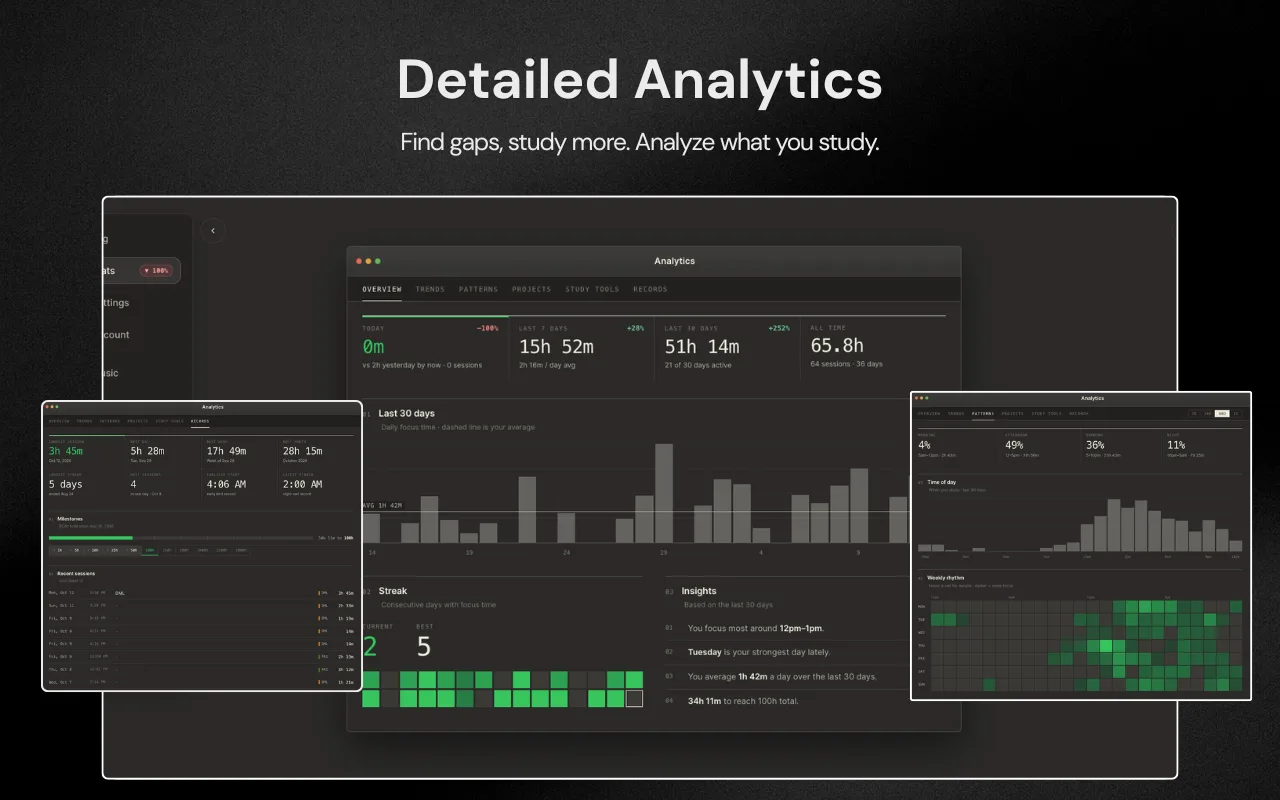
- Analytics: last 7 and 30 days compared with the period before, best hours, records and study patterns.
- The daily insight above the heatmap, one sentence about your studying.
Tips for accurate tracking
- Pause for real interruptions, such as a call, and resume after.
- Use Stopwatch mode for open-ended work, so you do not stop early because a timer ended.
- Do not log time that was not study. A smaller honest number is more useful. See how to track study hours.
- Compare against a target. The study hours calculator helps you set one.
Frequently asked questions
Does it track time on websites automatically?
No. It tracks the sessions you start. That keeps the record about study, not about every tab you open.
What if my laptop goes to sleep during a session?
The timer is based on real start and end times, so it stays correct when Chrome wakes up.
Can I see sessions from the extension and the web app together?
Yes. Both save to the same account, so the heatmap and Analytics show all of them.
Can I add notes to a session?
The extension saves the label. You can add longer notes to the session in the Stuon log.
Related pages
Add Stuon to Chrome
Start a focus session from the toolbar, block the sites that pull you away, and watch every session land on your Stuon heatmap.