chrome extension
Stuon Chrome extension: study timer and site blocker
what does the Stuon Chrome extension do?
The Stuon Chrome extension is a study timer and website blocker that lives in your Chrome toolbar. Start a timer, Pomodoro or stopwatch session, block the sites that distract you, and every finished session is saved to your Stuon account, where it fills in your heatmap, streak and analytics.
by Vusal Imranli updated 14 Nov 20265 min read
What you get
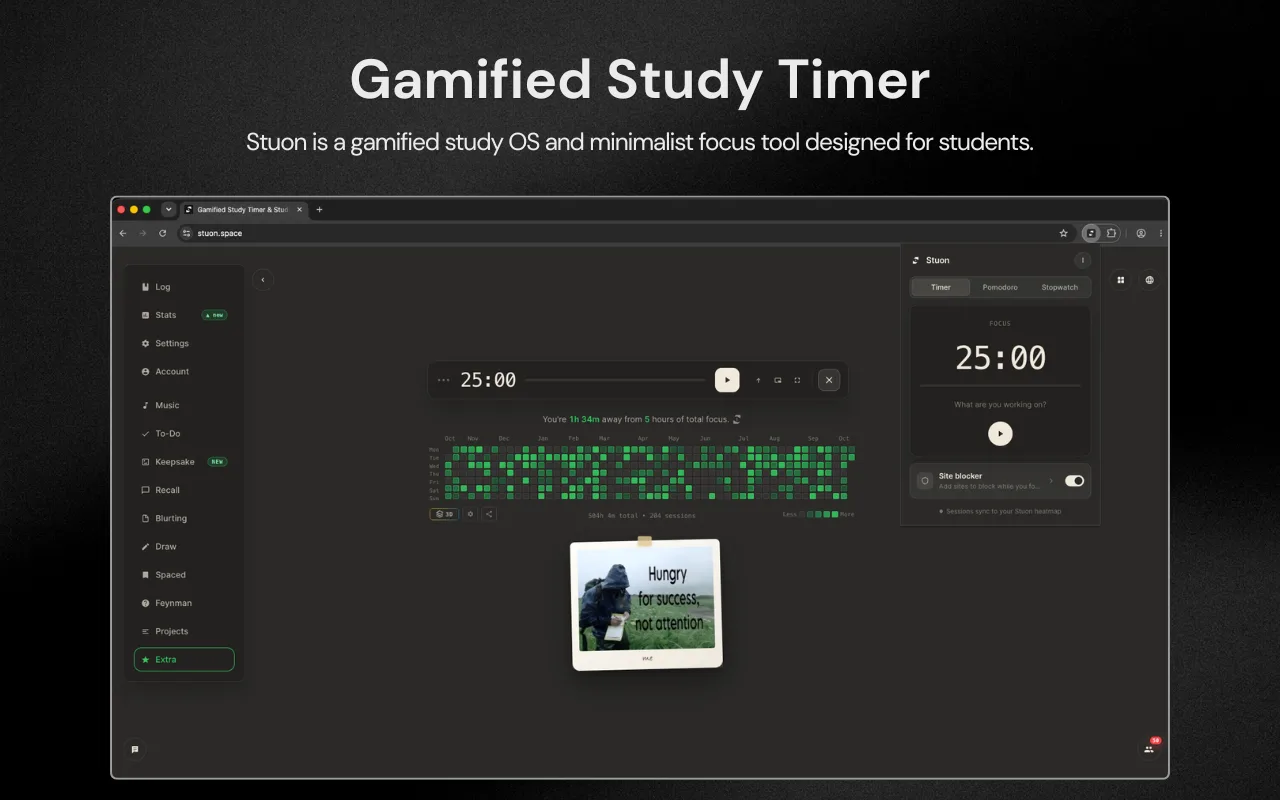
- Three timer modes. Timer counts down from a length you set, Pomodoro cycles focus and breaks, and Stopwatch counts up for open-ended work.
- A label for each session. Type what you are working on, and it is saved with the session in your study log.
- Time in the toolbar. The extension icon shows the minutes left, or two bars when the session is paused, so you do not need to open anything.
- Notifications. Chrome tells you when a focus block ends and when a break is over.
- A site blocker. Add the sites that pull you away. They are blocked while you focus, all the time, or in a strict mode that is hard to undo.
- Automatic sync. Every session longer than a few seconds is saved to your Stuon account and appears on your study heatmap.
How to set it up
- Add it to Chrome. Open the Stuon extension on the Chrome Web Store and choose Add to Chrome. Pin it to the toolbar so the timer stays visible.
- Connect your account. Sign in with your Stuon email and password. If you do not have an account yet, choose Create an account. A Forgot? link sends a password reset email.
- Pick a mode. Choose Timer, Pomodoro or Stopwatch. Use the minus and plus buttons to change the length in five-minute steps.
- Add your distracting sites. Open Site blocker and type a site such as youtube.com, or tap a suggestion. See how to block websites while studying.
- Start a session. Type what you are working on and press play. Blocked sites close for the length of the focus block.
- Stop and save. Press stop when you finish. The session is saved to your account and counts toward your study streak.
Features at a glance
| Criteria | What it does |
|---|---|
| Timer mode | Counts down from 25 minutes by default. Change it in five-minute steps. |
| Pomodoro mode | Focus, short break, and a long break after a set number of rounds. Lengths come from your Stuon settings, 25, 5 and 15 minutes by default. |
| Stopwatch mode | Counts up with no end, for work without a fixed length. |
| Toolbar badge | Shows minutes left, or minutes elapsed in Stopwatch mode. |
| Focus blocking | Blocks your list only while a focus block runs. Breaks are open. |
| Always blocking | Blocks your list whether or not a timer is running. |
| Strict blocking | Needs a password, a series of confirmations and a typed phrase before a site opens for 15 minutes. |
| Open tabs | Tabs already on a blocked site switch to the blocked page when blocking starts. |
| Offline sessions | Sessions are queued in the browser and sent when you are back online. |
| Settings sync | Timer lengths and the light or dark theme come from your Stuon account. |
Facts taken from the extension as released on 15 October 2026.
How it works with the Stuon web app
The extension and the Stuon web app share one account. The extension is for starting a session fast and keeping distractions closed. The web app is where you see the results: the heatmap, streaks, the daily insight and the Analytics window.
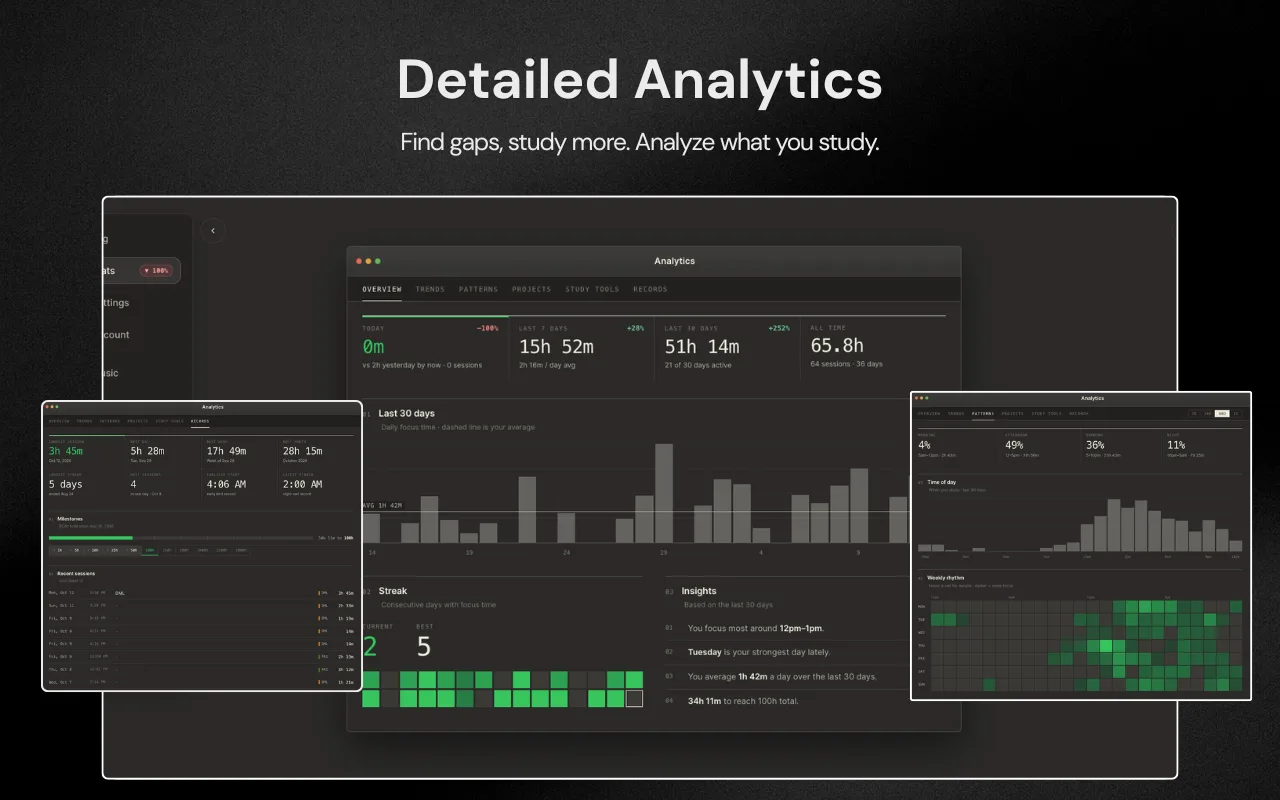
You can use either one to time a session. If you mostly study in Chrome, the extension saves you a tab. If you want music, study tools such as blurting or flashcards, or the large timer view, open the web app. See Stuon extension vs web app for a full comparison.
Who it is for
- Students who study on a laptop and lose time to YouTube, social media or news sites.
- Anyone who already uses Stuon and wants to start sessions without opening the app.
- People who want a Pomodoro timer and a blocker in one extension instead of two.
- Students building a habit who want proof of effort: hours on a heatmap rather than a feeling.
It does not block phone apps. If your phone is the main distraction, keep it in another room, or pair Stuon with a phone app such as Forest. See Stuon vs Forest.
Frequently asked questions
Is the Stuon Chrome extension free?
Yes. It is free to install from the Chrome Web Store. It needs a Stuon account to save sessions.
Does it work without the Stuon website open?
Yes. The timer runs in the extension, so it keeps going when every Stuon tab is closed, and Chrome notifies you when a block ends.
Which browsers does it support?
It is built for Google Chrome, version 120 or later. Other Chromium browsers that install from the Chrome Web Store may work, but Chrome is the supported browser.
What happens if I go offline during a session?
The session is saved in the browser first and sent to your account when the connection returns, so it is not lost.
Why does it ask for access to all websites?
A site blocker has to be able to stop any site you add to your list. The extension uses that access to block sites and show its blocked page.
Can I use it with Pomodoro?
Yes. Pomodoro is one of the three modes. See Pomodoro timer Chrome extension.
Sources
Related pages
Add Stuon to Chrome
Start a focus session from the toolbar, block the sites that pull you away, and watch every session land on your Stuon heatmap.