guide
How to block websites during exam season
how should you block websites during exams?
Sort your sites into three groups before revision starts. Lock the one or two you always give in to with strict mode, block the rest of the distracting list all day with Always mode, and never block sites you revise from. Keep that setup until your last exam, then switch back to blocking only during study sessions.
by Vusal Imranli updated 14 Nov 20264 min read
Why exam season needs a different setup
During term, blocking only during study blocks works well: you study, you take a break, you scroll. In revision season the day is mostly study, and a break that turns into an hour of feeds costs you a topic. The answer is not to block more sites, but to block the same few for longer and make the worst one hard to reopen.
Stuon does not block on a calendar, so you make the change by hand: switch the mode on the first day of revision and switch it back after your last paper. Put both dates in your exam countdown so you do not forget.
Sort your sites into three groups
| Group | Examples | Stuon setting |
|---|---|---|
| Always give in | The one feed you open without thinking | Strict mode: password, confirmations and a typed phrase, then 15 minutes for that site only |
| Distracting | Video, streaming, shopping, sports and news sites | Always mode: blocked all day, timer or not |
| Needed for revision | Your course platform, past-paper sites, a dictionary, your notes | Not on the list |
Stuon has one block list and one mode at a time. If you use strict mode, every site on the list is strict, so keep the list short or keep the worst site and leave the rest to Focus mode.
Set it up the night before revision starts
- Trim the list. Open Site blocker in the Stuon extension and remove anything you might need for revision. A blocked past-paper site is a reason to switch the blocker off.
- Choose the mode. Pick Always for a long list, or Strict for a short list of your worst sites. See strict mode website blocker.
- Hand over the password. For strict mode, let a friend or parent type a password you do not know. Leaving strict mode needs that password, so they are the way out.
- Raise the confirmations. Strict mode asks "are you sure" 10 times by default. You can set it up to 30. Lowering it later also needs the password.
- Plan the sessions. Make a timetable with the revision timetable generator, then time each block with Timer or Pomodoro so the hours are logged.
Check the plan is working
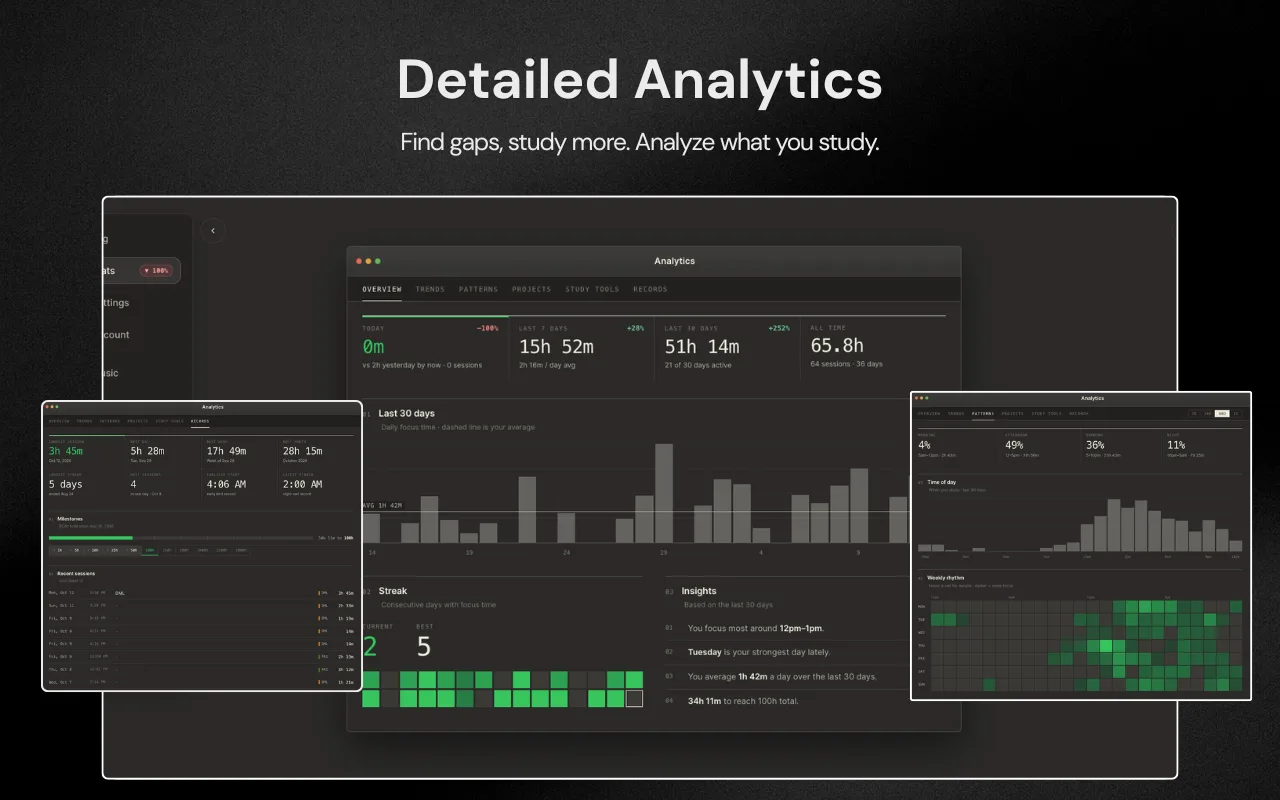
A blocker shows you nothing about whether revision is happening. The sessions you time in the extension do: each one lands on your study heatmap and in Stuon Analytics, so after a few days you can see whether the hours match your timetable. If a day is blank, the cause is usually the plan, not a site. See how to study for exams for building revision around active recall and spaced repetition.
After the last exam
- Switch the mode back to Focus, so sites are blocked only during study blocks again. In strict mode this needs the password.
- Remove sites you only blocked for the exams, or keep them for next term.
- Look back at the season on your heatmap. It is a useful record of how much revision a set of exams took you.
Frequently asked questions
Can I schedule blocking to start on a date?
Not in Stuon. It blocks during focus blocks, or all the time in Always and Strict modes. Schedule-based blockers are compared in best website blockers for studying.
What if I need a blocked site for revision?
In Always mode, remove it from the list or switch the blocker off. In strict mode, the password, confirmations and phrase open that one site for 15 minutes.
Should I block everything during exams?
No. A list that blocks revision sites gets switched off. Block the sites that cost you time and leave the rest open.
Are sites blocked in my breaks in Always mode?
Yes. Always and Strict modes block whether or not a timer runs. Plan breaks away from the screen, or use Focus mode for sites you want as a break reward.
Related pages
Add Stuon to Chrome
Start a focus session from the toolbar, block the sites that pull you away, and watch every session land on your Stuon heatmap.