guide
Study timer Chrome extension
what is the best way to time study sessions in Chrome?
Use a timer extension that stays in the toolbar and saves each session. The Stuon extension has a countdown Timer from 5 to 180 minutes and a Stopwatch that counts up with no end. Type what you are working on, press play, and when you stop, the session and its label are saved to your Stuon heatmap.
by Vusal Imranli updated 14 Nov 20264 min read
Countdown or stopwatch?
Not every study block fits a Pomodoro. Reading a chapter, writing an essay or working through a problem set often goes better without a bell every 25 minutes. The Stuon extension gives you two plain modes alongside Pomodoro.
| Criteria | Timer | Stopwatch | Pomodoro |
|---|---|---|---|
| Counts | Down from a length you set | Up from zero | Down, then a break |
| Length | 5 to 180 minutes, in five-minute steps. 25 by default. | No end. You stop it. | Focus, short and long break lengths from your Stuon settings |
| Toolbar badge | Minutes left | Minutes elapsed | Minutes left in the phase |
| When it is saved | When it ends, or when you press stop | When you press stop | After each focus block |
| Good for | A block with a clear finish line | Open-ended reading and writing | Repetitive practice |
Change the Timer length with the minus and plus buttons, or by scrolling over the clock, before you start. The mode cannot change while a session runs.
How to time a session
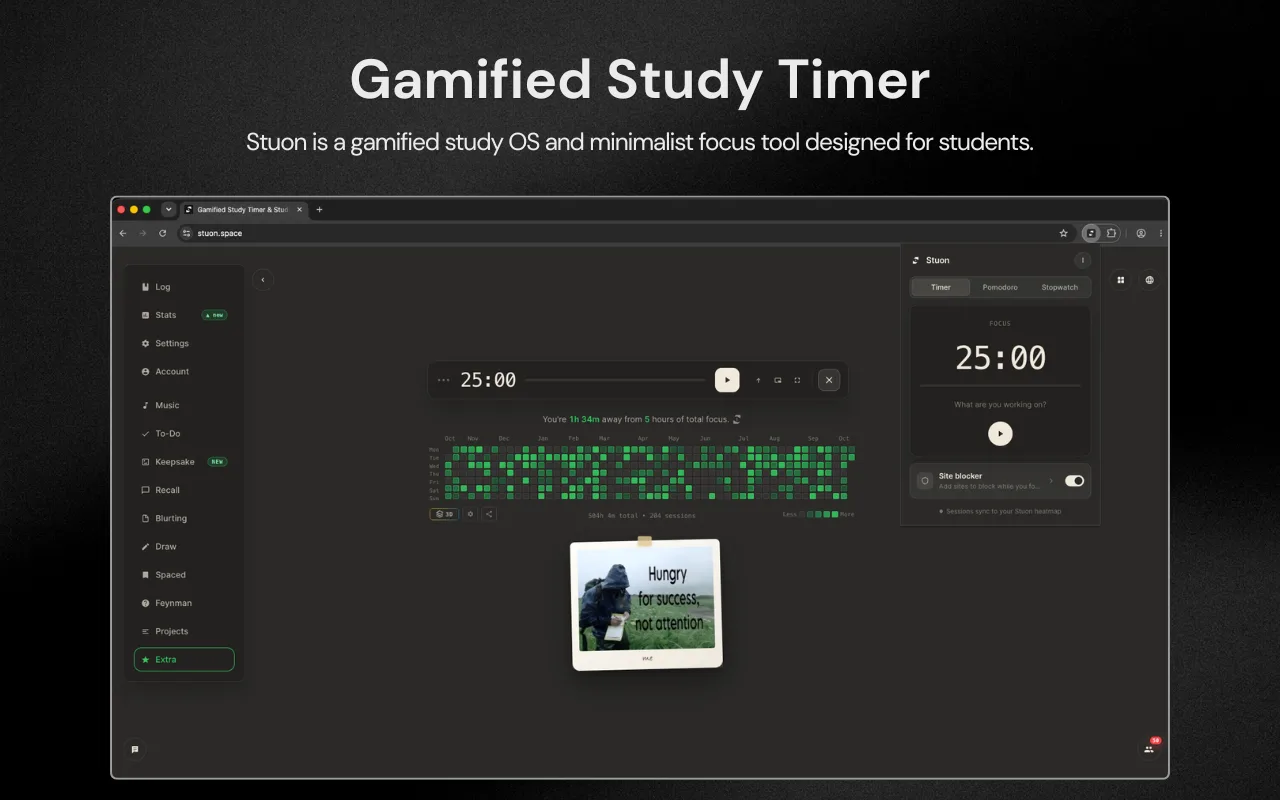
- Open the popup. Click the Stuon icon in the toolbar and choose Timer or Stopwatch.
- Set the length. For Timer, press minus or plus until the clock shows the block you want. Stopwatch has no length to set.
- Write a label. In "What are you working on?", type the subject or task, up to 120 characters. It is saved with the session.
- Start. Press play, or press Space while the popup is open. The badge on the icon starts counting.
- Pause for real interruptions. Pause shows two bars on the badge. Paused time is not added to the session.
- Stop and save. Press the stop button. The footer of the popup confirms the last session saved and its length.
What the log records
Each saved session goes to your Stuon account with its date, start and end time, focus length and label. Breaks are never saved as study time, and anything of five seconds or less is dropped, so an accidental click does not show up in your record.
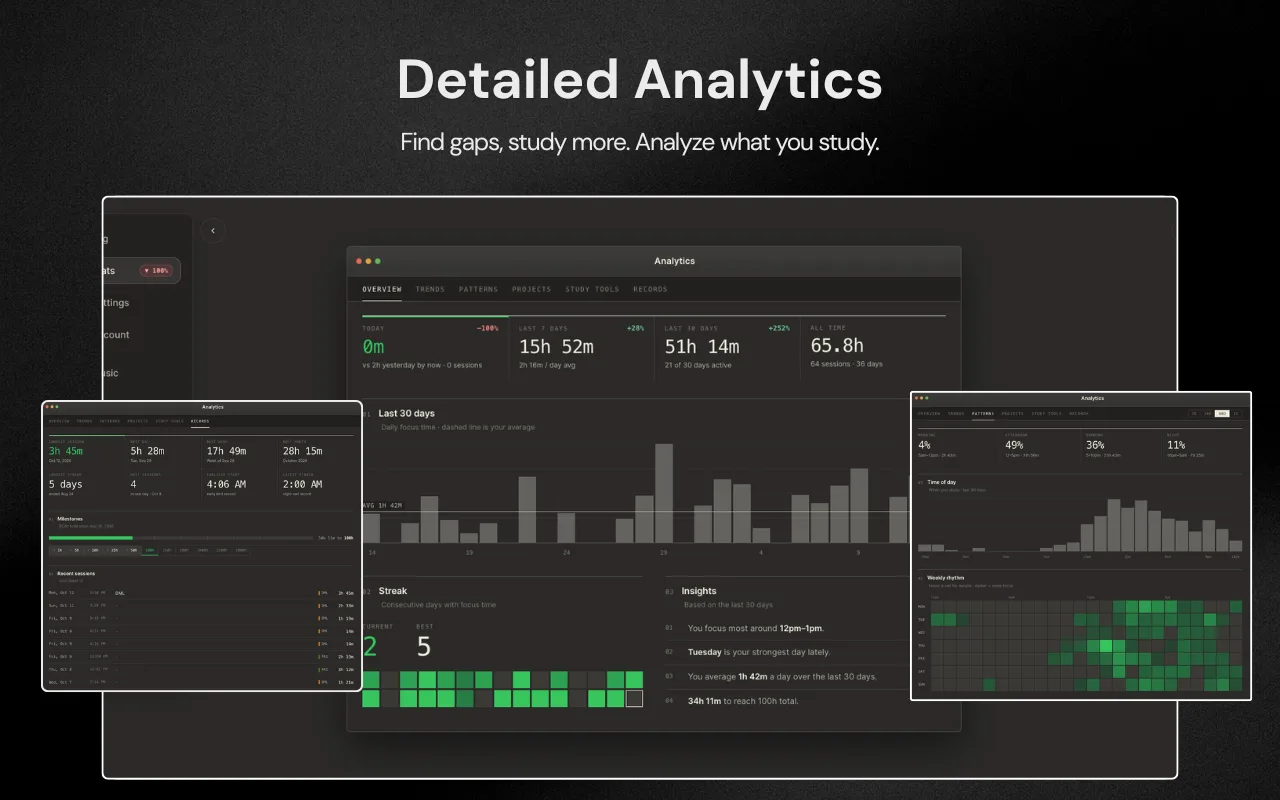
The sessions appear on your study heatmap, extend your study streak, and feed Stuon Analytics, where you can see your best hours and how this week compares with the last. If the connection drops, the popup shows how many sessions are waiting to sync and sends them when you are back online.
Tips for timing study honestly
- Use Timer when you know the task size, such as one past paper. A fixed end stops a task from stretching to fill the evening.
- Use Stopwatch for work where stopping at a bell would cost you, then stop the moment your attention goes.
- Write the label before you start. "Chapter 4 notes" makes the log readable a month later; "study" does not.
- Turn on the site blocker in Focus mode, so distracting sites close while either mode runs.
- Not sure which length to use? See study timer vs Pomodoro and the online study timer.
Frequently asked questions
Does the timer keep running if I close the popup?
Yes. It runs in the extension's background, the badge keeps counting, and Chrome shows a notification when a Timer session ends.
Is there a limit on Stopwatch length?
No. Stopwatch counts until you stop it. The badge switches from minutes to hours once you pass 100 minutes.
Can I use a timer without the site blocker?
Yes. Turn the Site blocker switch off. The timer and the log still work.
Do I need an account?
Yes. The extension saves sessions to a Stuon account, so it asks you to connect one first. For a timer without an account, use the online stopwatch on this site.
What if I stop a Timer session early?
The time you actually focused is saved, not the full length you set.
Related pages
Add Stuon to Chrome
Start a focus session from the toolbar, block the sites that pull you away, and watch every session land on your Stuon heatmap.