set-up guide
How to install and set up the Stuon extension
how do you install the Stuon extension?
Open the Stuon listing on the Chrome Web Store, choose Add to Chrome, and pin the icon from the puzzle-piece menu. Click the icon and connect with your Stuon email and password. Then add a few sites to Site blocker, type what you are working on and press play. You need Chrome 120 or later.
by Vusal Imranli updated 14 Nov 20265 min read
Install and connect
- Check your browser. The extension needs Google Chrome 120 or later on a desktop or laptop. Open chrome://settings/help to see your version.
- Add it to Chrome. Open the Stuon extension on the Chrome Web Store and choose Add to Chrome. Chrome lists the permissions before it installs.
- Pin the icon. Click the puzzle-piece icon to the right of the address bar and pin Stuon. The pinned icon carries the timer badge, so you can see minutes left without opening anything.
- Connect your account. Click the icon. Enter the email and password you use for Stuon and press Connect. No account yet? Choose Create an account, which opens the Stuon app in a new tab.
- Wait for your settings. After you connect, the extension pulls your timer lengths, preferred timer mode and light or dark theme from your Stuon account.
Set up your block list and first session
- Click Site blocker under the timer. Tap two or three suggestions, or type a site such as youtube.com and press Add.
- Leave the block mode on Focus for now. Sites close only while a focus block runs.
- Back on the main screen, choose Timer, Pomodoro or Stopwatch.
- Type one task in "What are you working on?" and press play.
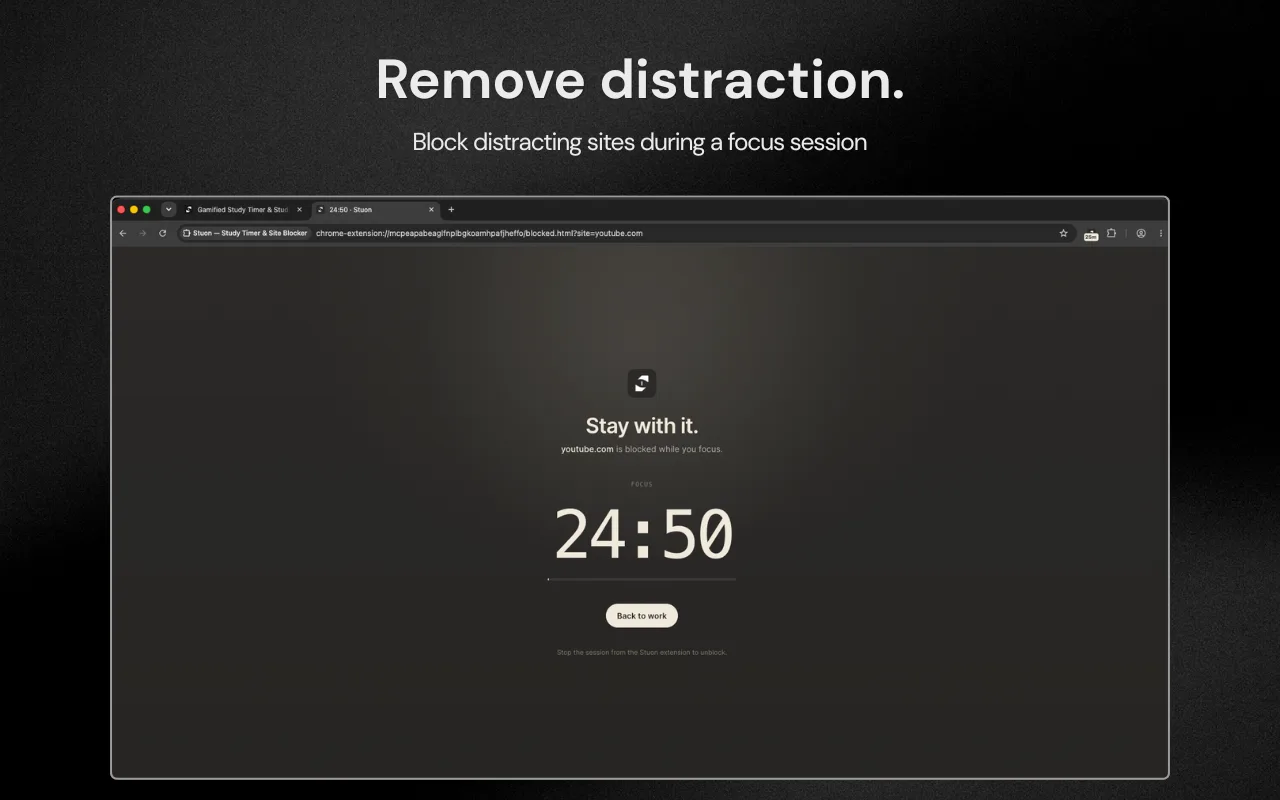
- Try opening a blocked site. You should see the Stuon blocked page with the time left.
- Press stop. The footer changes to "Last session saved" with its length, and the session appears on your study heatmap.
For the full feature list, see Stuon Chrome extension. For a slower-to-undo setup, read strict mode website blocker before you switch it on.
What each permission is for
| Permission | Why it is needed |
|---|---|
| Access to all websites | A blocker has to be able to stop any site you add, and switch an open tab to the blocked page. |
| Block content (declarativeNetRequest) | Chrome's built-in way for an extension to redirect a blocked site before it loads. |
| Storage | Keeps your block list, timer state and any sessions waiting to sync on your computer. |
| Alarms | Ends a timer on time even when the popup is closed. |
| Notifications | Tells you when a focus block or a break ends. |
| Site icons (favicon) | Shows each site's icon next to it in your block list. |
Taken from the extension's manifest as released in October 2026.
Fix common problems
- The popup only shows Connect. You are signed out. Connect again; your block list stays on the computer. If you forgot your password, type your email and choose Forgot? to get a reset email.
- "Sessions waiting to sync" in the footer. The extension is offline or could not reach Stuon. Sessions are kept in the browser. Press Retry, or wait until you are back online.
- A blocked site still opens. Check the Site blocker switch is on and the site is on the list. In Focus mode, sites are blocked only while a focus block runs, not in breaks or when the timer is idle.
- Nothing is blocked in Incognito. Chrome turns extensions off there unless you allow Stuon to run in Incognito on its details page.
- Timer lengths differ from the web app. The extension reloads your Stuon settings when you open the popup, if the last refresh was more than ten minutes ago, and only while no session is running. A change made in the web app can take that long to appear.
- You want to sign out. Open the account menu at the top right and choose Disconnect. A running focus session is saved first.
Frequently asked questions
Is the Stuon extension free?
Yes. It is free to install from the Chrome Web Store. It needs a Stuon account to save sessions.
Can I install it on Edge, Brave or Firefox?
It is built for Chrome. Some Chromium browsers can install Chrome Web Store extensions, but they are not supported. It is not available for Firefox or Safari.
Does it work on a phone or tablet?
No. Chrome on Android and iOS does not run extensions. On a phone, use the Stuon web app in the browser. See Stuon extension vs web app.
Does uninstalling remove my study history?
No. Saved sessions live in your Stuon account. Uninstalling clears only what is stored in the extension: the block list, the strict password and any sessions still waiting to sync.
Are there keyboard shortcuts?
With the popup open, Space starts, pauses or resumes the timer, and Escape leaves the Site blocker screen.
Sources
Related pages
Add Stuon to Chrome
Start a focus session from the toolbar, block the sites that pull you away, and watch every session land on your Stuon heatmap.